02 Nov
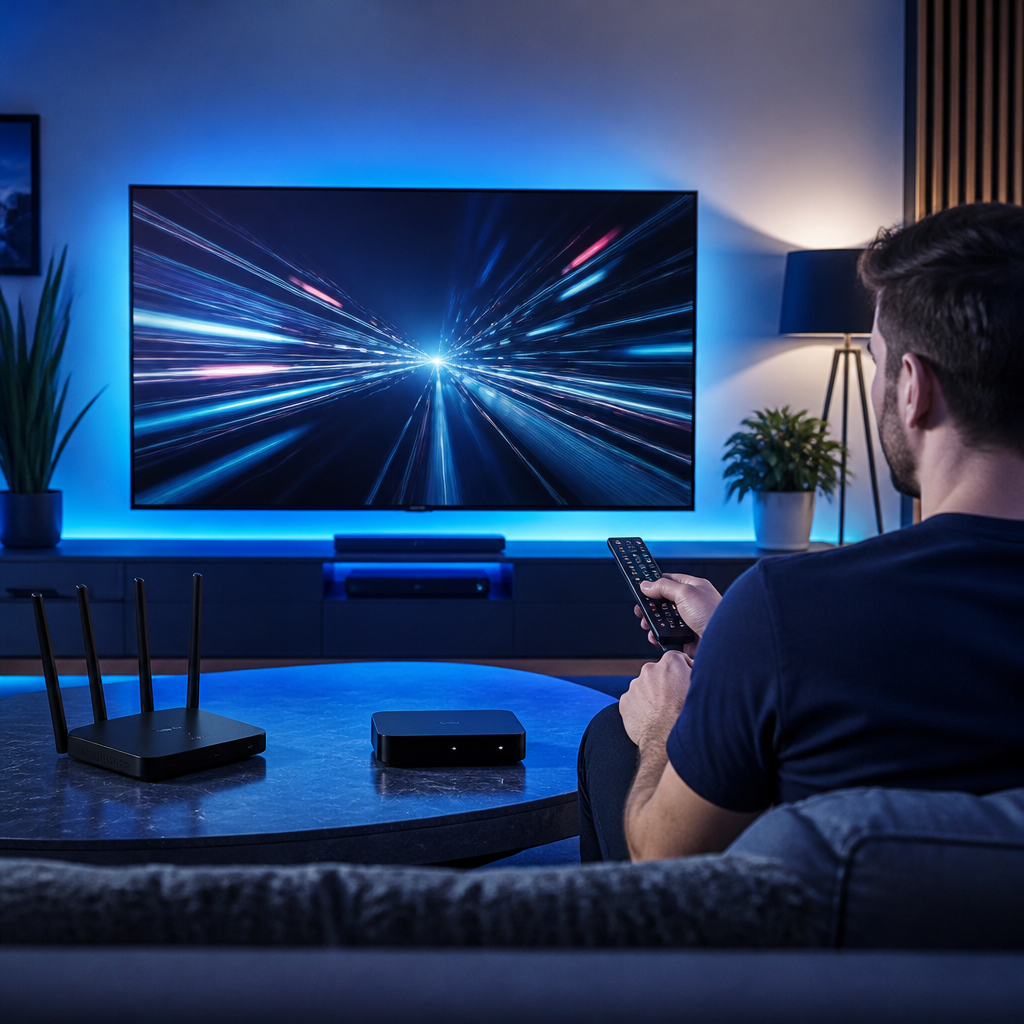
IPTV UK setup guide advice can feel confusing when you are doing it for the first time, but the good news is that the basics are much simpler than they first appear.
If you are a British viewer comparing ways to watch television through your broadband connection, Mystele IPTV UK aims to make the process feel calm, practical and easy to understand.
This beginner-friendly checklist is written for everyday households, not engineers. Whether you use a Fire TV Stick, Android TV box, Smart TV, tablet or phone, the same sensible setup principles apply.
You can learn more about IPTV UK and how it fits into modern viewing habits, but this guide will focus on what to do before, during and after your first setup.
We will cover broadband checks, device choices, app installation, login details, picture testing, TV Licence considerations and the common mistakes that catch a lot of viewers out.
How do you set up IPTV UK for the first time?
- Check that your broadband is stable, preferably fibre broadband or a strong full-fibre connection if available in your area.
- Choose the device you want to use, such as a Fire TV Stick, Android TV device, Smart TV, phone, tablet or computer.
- Confirm that your device is updated, connected to the internet and has enough storage for the IPTV app you plan to use.
- Install the recommended app or compatible player only from a trusted app store or official source.
- Enter your subscription details carefully, usually a username, password and server URL or a playlist link, depending on the provider.
- Test live channels, on-demand sections and catch-up style features where available, using both peak and quieter viewing times.
- Adjust picture settings, subtitles, parental controls and favourites so the service feels comfortable for your household.
- Keep your login details safe, avoid sharing them widely and ask your provider for help if something does not work as expected.
That is the core setup process in plain English. In most cases, a first-time IPTV setup is not about complicated technology. It is about preparing the right device, having reliable broadband, entering the details correctly and testing patiently before you settle into regular viewing.
The rest of this guide expands each step so you know what to expect. If you are brand new to internet TV, you may also find it useful to read this broader explanation of what IPTV UK means for British viewers before you begin.
Before you start your IPTV UK setup guide checklist
Before installing anything, take a few minutes to understand what IPTV actually is. IPTV stands for Internet Protocol Television. In simple terms, it means television delivered over your internet connection rather than through a traditional aerial, satellite dish or cable box.
For many UK homes, this fits naturally alongside services such as Freeview, Freesat, BBC iPlayer, ITVX, Channel 4, Channel 5, NOW and other streaming apps. It is part of the wider shift towards watching TV through broadband, apps and connected devices.
However, IPTV is not all one thing. There are official broadcaster apps, paid streaming services, internet-delivered TV packages and third-party IPTV providers. The setup process can look similar across these options, but the rules, reliability, content rights and support can vary widely.
Before you begin, make sure you know:
- Which provider you are using
- Which app or player they recommend
- What device you will watch on
- Whether your broadband is suitable
- What login details you need
- How support is provided
A little preparation prevents a lot of frustration. A common first-time problem is that viewers rush straight to installing an app without checking their broadband, device compatibility or subscription details. Then, when something buffers or fails to load, it is hard to know where the problem sits.
Think of IPTV setup like setting up any other home entertainment service. You want the internet, device, app and account to work together. If one part is weak, the viewing experience may suffer.
Choose the right device for IPTV UK setup guide success
Your device has a big impact on how smooth your IPTV experience feels. You do not necessarily need the most expensive gadget, but you do want something reliable, updated and easy for your household to use.
Many UK viewers choose a Fire TV Stick because it is familiar, widely available and plugs directly into the HDMI port on the back of the telly. Others prefer Android TV devices because they offer more flexibility with apps. Some Smart TVs have built-in app stores, while phones, tablets and laptops can be useful for watching away from the main living room.
Popular device options include:
- Amazon Fire TV Stick
- Android TV box or stick
- Android Smart TV
- Samsung or LG Smart TV
- iPhone or iPad
- Android phone or tablet
- Windows or Mac computer
For beginners, the best device is usually the one you already understand. If you are comfortable using a Fire TV Stick remote, start there. If your Smart TV app store supports the app you need, that may be the simplest route. If your older TV feels slow or clunky, a separate streaming stick can often feel more responsive.
When comparing devices, think about remote control comfort, app availability, storage space, Wi-Fi strength and software updates. A cheap unknown device may look tempting, but poor updates or weak hardware can cause freezing, crashes and slow menus.
If you are still comparing what matters beyond the device itself, this guide to the best IPTV UK features to compare can help you judge usability, support and viewing features more clearly.
Check your broadband before installing IPTV
Broadband is the foundation of any IPTV setup. A lot of viewers blame the app or provider when the real issue is weak Wi-Fi, an overloaded router or an unstable connection during busy evening hours.
You do not need to become a network expert, but you should check a few basics. Run a speed test near the device you plan to use, not just next to the router. If your TV is in the lounge and your router is in the hallway or upstairs office, the speed beside the TV is what matters.
Look for:
- Stable download speed
- Low buffering on other streaming apps
- Strong Wi-Fi signal near the TV
- No frequent router drop-outs
- Enough bandwidth for other people at home
- A sensible router position
As a general guide, HD streaming usually needs a steadier connection than basic browsing, and 4K streaming needs more again. The exact requirement depends on the app, stream quality and compression used. The key point is consistency. A connection that jumps up and down can feel worse than a slower but steadier one.
If your household has children gaming, someone working from home on video calls and several phones connected at once, your IPTV device may have to share the connection. In that case, fibre broadband or full fibre, where available, can make a noticeable difference.
If possible, connect your main streaming device by Ethernet cable. A wired connection is often more stable than Wi-Fi, especially in older houses with thick walls. If Ethernet is not practical, try moving the router higher, closer to the TV or away from microwaves, cordless phones and other sources of interference.
Install your IPTV app safely and carefully
Once your broadband and device are ready, the next step is installing the app or IPTV player. Your provider should tell you which app is supported and how to sign in. Follow those instructions rather than downloading random apps from unknown websites.
On many devices, installation simply means searching for an app in the official app store and pressing install. On some devices, especially certain Android-based systems, you may be asked to install an app manually. If you are not confident, ask the provider for clear guidance before changing settings.
Safe app installation habits include:
- Use official app stores where possible
- Follow your provider’s written instructions
- Avoid suspicious pop-ups and adverts
- Do not install apps from unknown links casually
- Keep your device software updated
- Remove apps you no longer use
Some IPTV apps are simply players. This means they do not provide channels by themselves. They only play content once you add valid login details or a playlist from a provider. This is similar to how a web browser does not create websites but allows you to access them.
When installing, take your time. First-time users often make small mistakes such as typing a server address incorrectly, using a capital letter in the wrong place or mixing up username and password fields. If the app allows copy and paste, use it carefully. If you type manually with a remote control, check every character before submitting.
Once installed, do not immediately start changing every setting. Sign in first, confirm the service loads, then adjust preferences afterwards. This makes it easier to identify where any problem begins.
Enter your IPTV UK subscription details correctly
Your subscription details are usually the bridge between the app and your provider. Depending on the service and app, you might receive a username, password and portal URL, or you might receive an M3U playlist link and electronic programme guide link. Some apps use QR codes or account-based sign-in.
Whatever format you receive, store it somewhere safe. A lot of setup delays happen because viewers misplace the welcome email or copy the wrong link. If you receive instructions from your provider, read them fully before starting.
Check the following details carefully:
- Username spelling
- Password capital letters
- Server or portal URL
- Playlist link format
- Device limit rules
- Subscription start date
- Support contact method
If you are still choosing a plan, it is wise to ask practical questions before paying. For example, how many devices are allowed, whether support is available during UK evening hours, how renewals work and what happens if you change device. This IPTV UK subscription checklist explains the kinds of questions beginners should ask before committing.
Be cautious with anyone who promises everything at once, refuses to explain setup clearly or pushes you into a long plan before you have tested the service. A reliable provider should be able to give calm, understandable instructions and realistic expectations.
If your login fails, do not repeatedly guess. Recheck the welcome message, restart the app and confirm your internet is working. If it still fails, contact support with your device model, app name and any error message shown on screen.
Organise channels, favourites and parental controls
After signing in, the service may load many categories, menus or sections. For a beginner, this can feel overwhelming. The good news is that most apps let you tidy things up so your day-to-day viewing is simpler.
Start by creating favourites for the channels or sections you use most. This might include news, entertainment, films, kids’ programmes, sport or regional content. The exact menu depends on the provider and app, so take a little time to explore.
Useful setup tasks include:
- Add favourite channels
- Hide unwanted categories if supported
- Set parental controls where available
- Check subtitle options
- Adjust audio language settings
- Set the correct time zone
- Refresh the programme guide
Parental controls are especially important in family homes. Do not assume everything is automatically filtered. If children use the same TV, check whether the app allows PIN protection, adult category hiding or profile restrictions. Also use your device-level controls where available, such as Fire TV parental settings or Smart TV restrictions.
Programme guides can take a few minutes to load. If listings appear blank at first, try refreshing the EPG, restarting the app or waiting briefly. If guide information remains wrong, ask the provider whether there is a specific EPG setting for your app.
Remember that your aim is comfort, not perfection on day one. Set up the essentials first, then fine-tune favourites over the next few evenings as you learn what your household actually watches.
Test picture quality, buffering and reliability
Testing is one of the most important parts of any IPTV UK setup guide. Do not judge the service after watching one channel for two minutes. Test across different times, categories and viewing conditions.
Try watching during a quiet daytime period and again during the evening when more UK households are online. If you mainly watch live sport, test during a busy fixture if possible, because high-demand events can reveal weaknesses in your broadband, device or provider.
During testing, look at:
- How quickly channels open
- Whether audio stays in sync
- Picture sharpness on your TV
- Buffering during peak hours
- Programme guide accuracy
- App crashes or freezes
- Support response quality
If a free trial is available, use it properly. Do not just scroll through menus. Watch actual programmes for a reasonable period, switch between channels, restart the app and test on the device you plan to use long term. This guide on an IPTV UK free trial for testing quality gives a useful framework for checking performance without rushing.
When judging picture quality, remember that your TV settings matter too. Some televisions have motion smoothing, vivid colour modes or sharpness settings that make streaming look unnatural. Try a standard, cinema or natural mode if the image looks too bright or harsh.
If you see buffering, test another streaming app such as BBC iPlayer, ITVX or YouTube at the same time. If everything buffers, your connection may be the issue. If only one app struggles, it may be an app, settings or provider problem.
Understand UK TV Licence and legal considerations
UK viewers should understand the basic TV Licence rules before using any live television service over the internet. In general, you need a TV Licence if you watch or record live TV on any channel, on any TV service, on any device. This includes watching live television through an app, website, set-top box, Smart TV or streaming stick.
You also need a TV Licence to use BBC iPlayer, whether you are watching live, catch-up or on-demand BBC programmes. This applies across devices, including TVs, phones, tablets, computers and games consoles.
In broad terms:
- Live TV usually requires a TV Licence
- BBC iPlayer requires a TV Licence
- Recording live TV requires a TV Licence
- On-demand non-BBC services may be different
- Rules can change, so check official guidance
This section is general information, not legal advice. If you are unsure, check the official TV Licensing website for the most current rules. The important point is that the delivery method does not remove the licence requirement. Live TV is still live TV whether it arrives through an aerial, satellite dish, cable or broadband connection.
You should also be careful about content rights and unrealistic claims. A provider should not be judged only by the longest channel list or boldest advert. Claims about premium sport, films or broadcaster content should be treated carefully unless the provider can explain matters transparently and lawfully.
Mystele IPTV UK encourages viewers to make informed choices, ask sensible questions and understand their responsibilities as UK television users.
IPTV UK vs Freeview, Freesat and streaming apps
Many beginners ask whether IPTV replaces Freeview, Freesat or familiar streaming apps. The honest answer is that it depends on how you watch TV. For some households, IPTV is an additional option. For others, it becomes part of a wider cord-cutting setup alongside official apps and on-demand services.
Freeview is received through an aerial and offers a range of free-to-air channels, depending on coverage and equipment. Freesat uses a satellite dish and can be helpful in areas where aerial reception is poor. Streaming apps such as BBC iPlayer, ITVX, Channel 4, Channel 5, NOW, Netflix, Disney+ and Prime Video use broadband and usually have their own accounts, rules and catalogues.
A simple comparison:
- Freeview: aerial-based free-to-air TV
- Freesat: satellite-based free-to-air TV
- Official apps: broadcaster or platform-controlled streaming
- IPTV: TV delivered through internet protocol
- NOW: contract-free access to selected Sky content
- Broadband TV: depends on connection quality
IPTV can appeal to viewers who want app-based viewing, flexible devices and a modern interface. Freeview and Freesat can still be valuable because they do not rely on your home broadband in the same way. If your internet goes down, an aerial or dish may still provide access to traditional broadcasts.
When comparing, be wary of inflated channel counts. A long list is not always better if many channels do not work, are duplicated or are irrelevant to your household. If you want to compare claims sensibly, read this guide on how to compare an IPTV UK channel list without being distracted by big numbers.
The best setup for many homes is a balanced one. You might keep Freeview for familiar UK channels, use official apps for catch-up, and use IPTV where it suits your viewing needs. There is no need to make everything complicated.
Common Mistakes to Avoid
Most IPTV setup problems are avoidable. Beginners often run into trouble because they rush, use an unsuitable device or accept vague claims without checking the basics.
Here are the most common mistakes:
- Buying a long plan before testing
- Using weak Wi-Fi in the living room
- Installing apps from unknown sources
- Ignoring TV Licence rules
- Choosing only by channel count
- Typing login details incorrectly
- Not checking support availability
Another mistake is assuming that a more expensive TV automatically fixes streaming problems. Your screen can be excellent, but if your broadband is unstable or your app is badly configured, you may still see buffering or poor performance.
Some viewers also forget to update their device. Older Fire TV Sticks, Smart TVs and Android boxes can slow down when storage is full or software is outdated. Before blaming the service, clear unused apps, restart the device and install updates.
Avoid sharing your account details casually. Some subscriptions have device limits, and logging in on too many devices can trigger errors or account restrictions. Keep details private and ask the provider how device changes are handled.
Finally, do not panic when something goes wrong. In most cases, issues can be narrowed down calmly: internet, device, app, login or provider. Work through one thing at a time rather than changing several settings at once.
Troubleshooting your first IPTV UK setup
If your IPTV service does not work immediately, stay calm. First-time setup issues are common and often simple to fix. Start with the basics before assuming anything major is wrong.
If nothing loads, check your internet by opening another app or website on the same device. If other apps fail too, restart your router and device. If only the IPTV app fails, check your login details and app settings.
For buffering, try these steps:
- Restart the router
- Restart the streaming device
- Move closer to the Wi-Fi router
- Use Ethernet if possible
- Close background apps
- Test another channel
- Check during a quieter time
If the picture works but there is no sound, check your TV volume, app audio track, HDMI connection and device audio settings. Some apps allow you to switch audio tracks, which can solve missing or wrong-language sound.
If the programme guide is empty, look for an EPG refresh option. Some guides take time to populate after first login. Also confirm the app time zone is correct, as wrong time settings can make listings appear out of sync.
If your app keeps crashing, clear the app cache if your device allows it. Make sure you have enough storage space. On older devices, deleting unused apps can make a surprising difference. If crashes continue, ask your provider whether a different compatible app is recommended.
When contacting support, give useful details. Include your device type, app name, broadband provider, whether you are on Wi-Fi or Ethernet, the error message and what you have already tried. This helps support respond faster and avoids repeated basic questions.
Build a simple routine after setup
Once everything works, a simple routine will keep your IPTV setup easier to manage. You do not need to tinker every day. In fact, changing settings constantly can create more problems than it solves.
Good habits include:
- Restart the device occasionally
- Keep apps updated
- Check storage space monthly
- Save support details
- Keep login details secure
- Review your plan before renewal
If you are deciding between short and long subscription periods, think about flexibility. Beginners often feel more comfortable starting with a shorter plan until they are confident the service suits their home, device and broadband. This comparison of monthly vs annual IPTV UK plans explains why flexibility can matter, especially when you are new to internet TV.
Set a reminder before renewal so you can review performance calmly. Ask yourself whether the channels you actually watch are reliable, whether support has been helpful, whether the app is easy for your household and whether the plan still suits your budget.
It is also worth checking your broader TV setup from time to time. You may have subscriptions you no longer use, duplicate services or apps taking up storage. A tidy streaming setup is easier to enjoy.
If your household includes less confident users, write down simple instructions: which HDMI input to choose, which app to open, how to find favourites and what to do if buffering starts. A small note near the remote can prevent a lot of frustration.
Final Thoughts
A first IPTV setup can seem like a big step, but the process becomes straightforward when you break it into a checklist: check broadband, choose a reliable device, install the right app, enter details carefully, test properly and understand the UK viewing rules that apply to live TV and BBC iPlayer.
The good news is that you do not need to be technical to get started. A lot of viewers simply need clear instructions, realistic expectations and a little patience during the first evening of setup. If you take your time and test in real household conditions, you will quickly learn what works best for your home.
Mystele IPTV UK is here to help British viewers make confident, informed choices about modern TV streaming. If you are preparing your first setup, use this IPTV UK setup guide as your calm checklist, and reach out to Mystele IPTV UK when you are ready to explore your options.
FAQ
Do I need fast broadband for IPTV UK?
You need stable broadband more than headline speed. Fibre broadband or full fibre is helpful, especially for HD or 4K viewing and busy households, but consistency near your TV matters most.
Can I set up IPTV UK on a Fire TV Stick?
In many cases, yes, provided the app you need is compatible with Fire TV and your device has enough storage. Always follow your provider’s instructions and keep the Fire TV Stick updated.
Do I need a TV Licence for IPTV in the UK?
You generally need a TV Licence to watch or record live TV on any channel, service or device, and to use BBC iPlayer. Check official TV Licensing guidance for the latest rules.
Why does IPTV buffer even though my speed test looks good?
Speed tests can be misleading if Wi-Fi is unstable, the router is overloaded or the issue happens only at peak times. Test near the TV, restart equipment and try Ethernet where possible.
Should beginners choose a monthly or annual IPTV plan?
Many beginners prefer starting monthly because it offers flexibility while they test picture quality, reliability, device compatibility and support. Once confident, they can review longer options if suitable.